
Your child's phone has gone quiet
Screenwise emails you when your child's phone stops checking in, or when it can no longer block apps. Most of the time the phone has closed Screenwise in the background. These steps stop that happening again.
Keep this page open on your own phone and do the steps on your child's phone. On your child's phone the browser can be blocked once the minutes are used up.
First, two quick checks
Check the phone is on and online.
If it was switched off or had no internet, there is nothing to fix.
Open Screenwise on your child's phone.
That starts it again, and it asks for anything that was switched off. If it asks for a battery setting, allow it.
Xiaomi, Redmi and POCO phones
These phones close apps they think are not needed, and Screenwise is often one of them. Do the steps in this order.
Pause Screenwise for a day first
On your child's phone, open Screenwise, tap “Settings” and enter your parent password. Open “Pause Screenwise”, leave every item ticked and choose “For 1 day”.
While it runs, Screenwise closes its own settings pages on the phone, and once the minutes are used up it blocks the phone's Security app too. The pause lets you reach them. You end it in the last step.
Let Screenwise start by itself
Open the phone's Settings and search for “Background autostart”. Open “Background autostart” and switch Screenwise on.
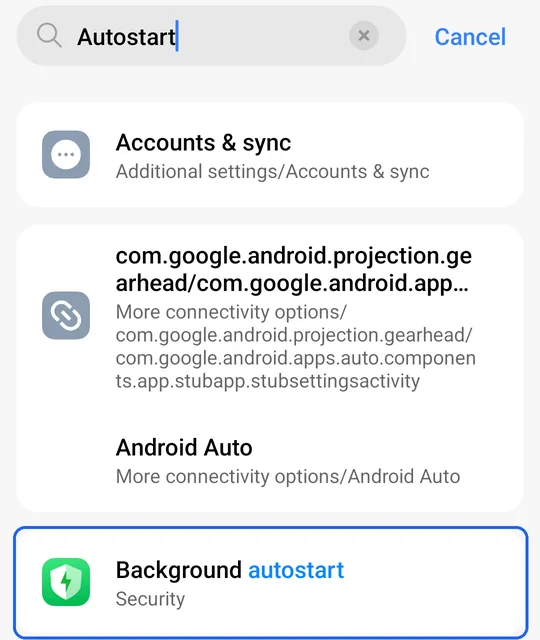
Search Settings and open “Background autostart”.Redmi 14C, HyperOS 3 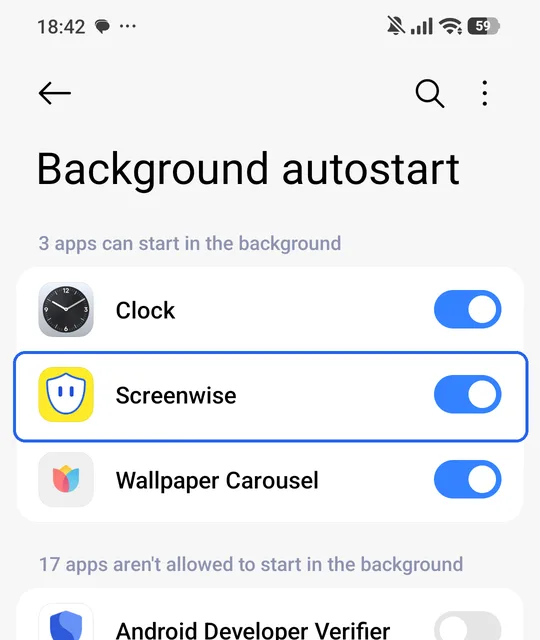
Switch Screenwise on.Redmi 14C, HyperOS 3 Let Screenwise open its screens
In Settings, open Apps and then Screenwise. On its “App info” page tap “Other permissions”, then “Open new windows while running in the background”, and choose “Always allow”.
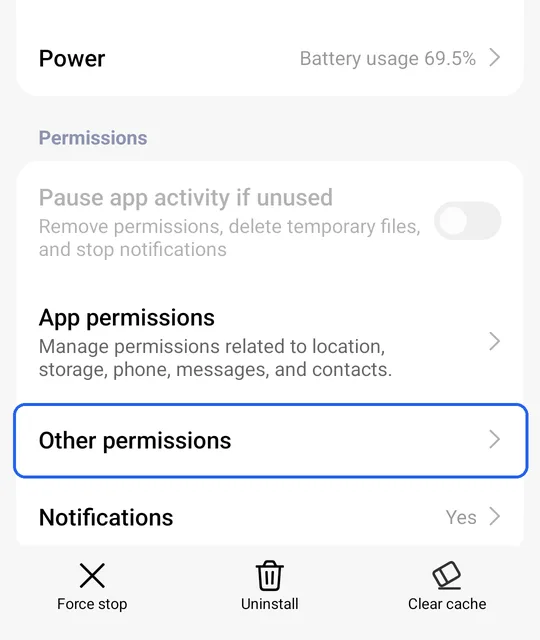
Tap “Other permissions”.Redmi 14C, HyperOS 3 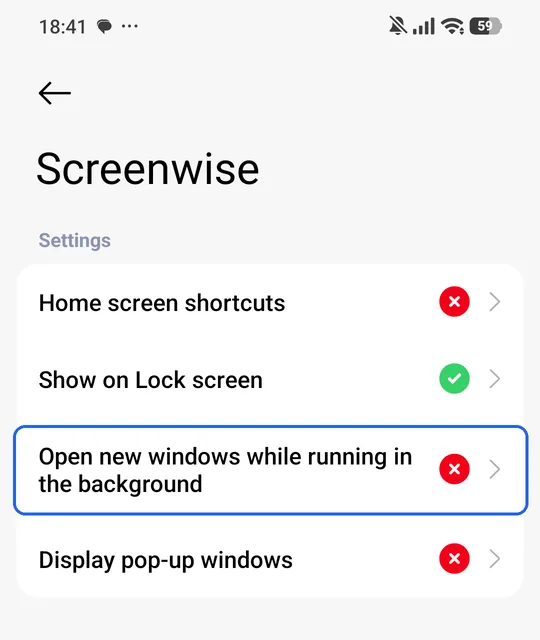
Tap “Open new windows while running in the background”.Redmi 14C, HyperOS 3 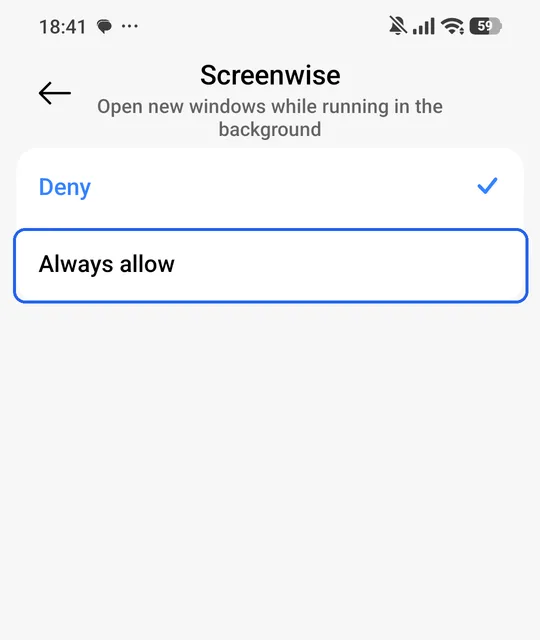
Choose “Always allow”.Redmi 14C, HyperOS 3 On older Xiaomi phones this row may be called “Display pop-up windows while running in the background”. If you cannot find the row at all, your phone does not need this step.
Leave “Display pop-up windows” as it is. Screenwise does not need it.
If Screenwise offers a step for this Newer versions of Screenwise show a setup step with a button that opens the right page for you. If you see it, tap the button and follow it.
Stop the phone putting Screenwise to sleep
In Settings, open Apps, then Screenwise, then “Power”. Choose “No restrictions”.
If your phone shows other words here, choose the one that lets Screenwise use the battery without limits.
Older Xiaomi phones only: lock it in recent apps
Open recent apps and press and hold the Screenwise card. If a padlock appears, tap it. Newer phones do not show one, and that is fine.
End the pause
Open Screenwise, tap “Settings”, enter your parent password and tap “Resume protection”. Then open an app your child is not allowed to use. The block screen should appear.
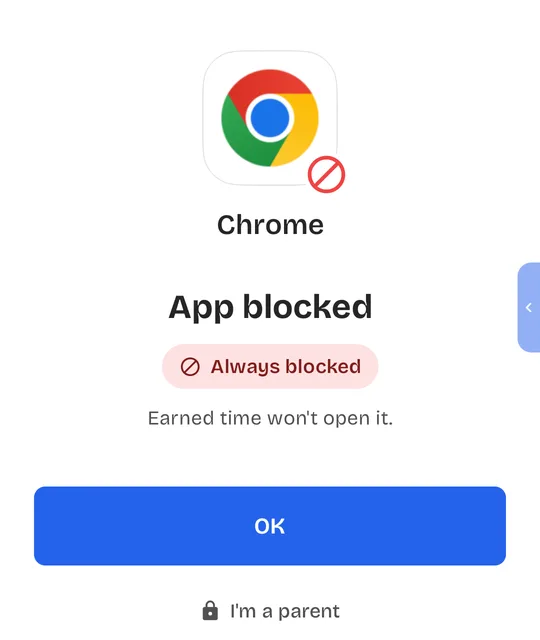
The block screen, when everything works.Redmi 14C, HyperOS 3
Still not working?
Email us and tell us the make and model of the phone. We will help you sort it out. contact@screenwise.app
Honor and Huawei phones
We do not have screenshots for these phones yet. The words on your phone may differ a little.
Let Screenwise start by itself
In Settings, search for “App launch”. Find Screenwise, switch off automatic management and choose “Manage manually”. Leave all three switches on.
Let Screenwise use the battery
Open Screenwise on your child's phone. If it asks for a battery setting, allow it. Without it this phone can pause or close Screenwise.
Still not working?
Email us and tell us the make and model of the phone. We will help you sort it out. contact@screenwise.app
Tecno, Infinix and itel phones
We do not have screenshots for these phones yet. The words on your phone may differ a little.
Let Screenwise start by itself
Open the Phone Master app, then “Toolbox”, then “Auto-start management”, and allow Screenwise.
Lock it in recent apps
Open recent apps, press and hold Screenwise and tap the padlock if you see one.
Still not working?
Email us and tell us the make and model of the phone. We will help you sort it out. contact@screenwise.app
Samsung and other phones
Check for cleaner apps
If a cleaner, booster or battery saver app is installed on the phone, add Screenwise to its allow list, or remove that app.
On Samsung phones, Screenwise asks during setup to be left out of battery saving, so there is nothing more to change in Settings.
Still not working?
Email us and tell us the make and model of the phone. We will help you sort it out. contact@screenwise.app
How a child can remove Screenwise, and what stops it
What protects it today
Screenwise can only be uninstalled after its uninstall protection is switched off, and that needs your parent password. Screenwise also covers the phone's pages for its protection switches, its own app page, the date and time, language and developer settings, and the safe mode restart.
What closes the door
A running Screenwise is what covers those pages, so the steps that keep it running matter most. Choose your phone:
- Xiaomi, Redmi, POCO: Follow the steps that keep Screenwise running on these phones. See the steps
- Honor, Huawei: Follow the steps that keep Screenwise running on these phones. See the steps
- Tecno, Infinix, itel: Follow the steps that keep Screenwise running on these phones. See the steps
- Samsung and other phones: Follow the steps that keep Screenwise running on these phones. See the steps
On every phone
Keep your parent password to yourself, and change it in Screenwise's Settings if your child may know it. Link Screenwise to the app on your own phone, so you are told when it stops working.
What we cannot stop
A factory reset, or a phone wiped by a repair shop. Setting Screenwise up again takes a few minutes.